PDF to images page by page
Turn presentations, plans or invoices into images to drop into an email, a website or a slide deck.
The installers are not yet signed with a developer certificate, so macOS and Windows show a warning the first time. That is expected: below we explain how to open it and how to check the file is the one we published.
Download for Mac 114 MBDownload for Windows 122 MBIntel Mac? Download this version
Did something stop you installing it?
Thanks. The help for the warning is just below.
Version 1.2.0 · free · no account · macOS 12 or later · Windows 10/11 (64-bit)
Airpic PDF is a free desktop app: download it, open it and follow these steps. Nothing is uploaded to the internet.
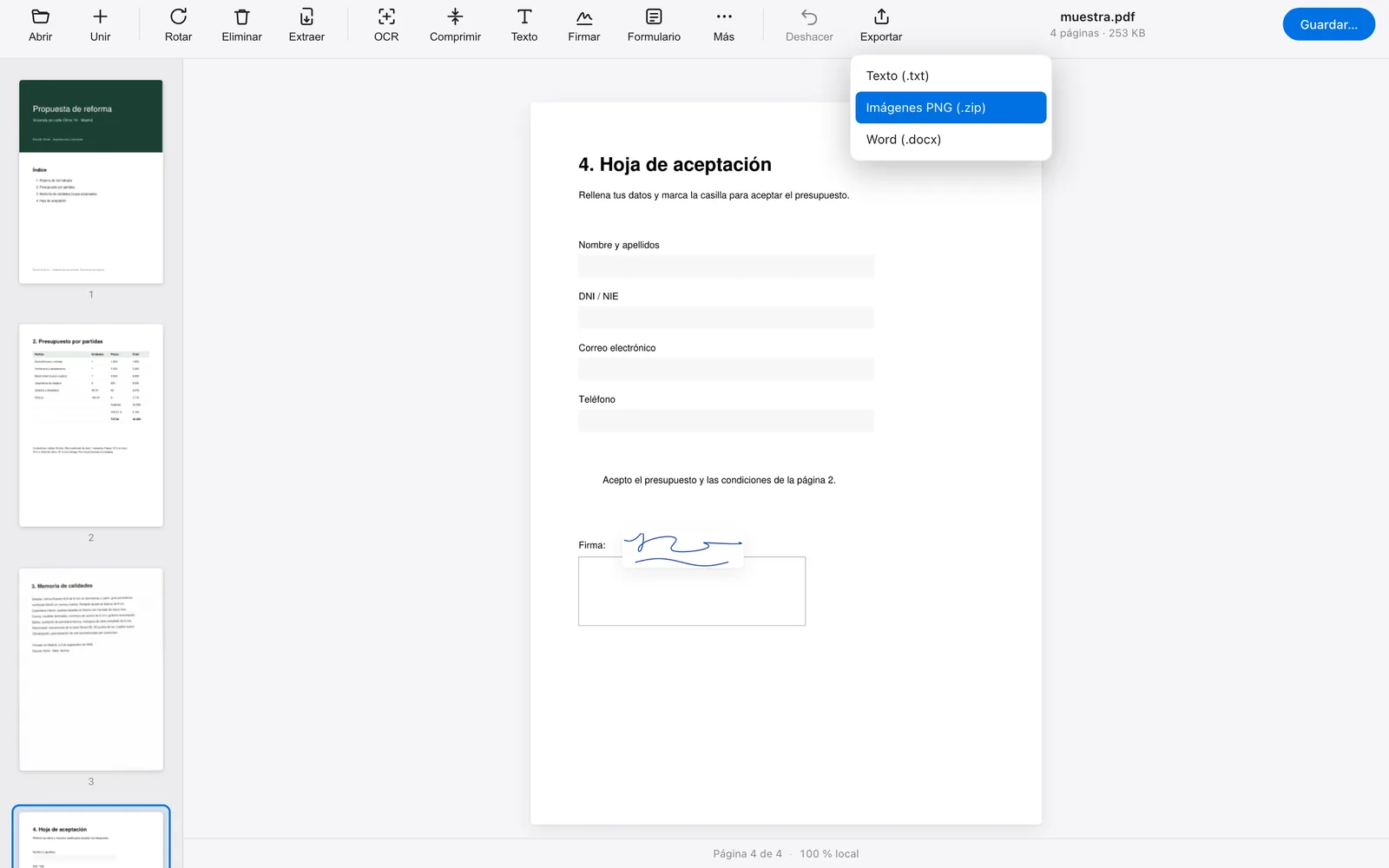
- Open the PDF and, if you only want some pages, extract them first with «Extraer» (Extract).
- Click «Exportar» (Export) → «Imágenes PNG (.zip)».
- Choose where to save the ZIP; it contains one image per page.
Airpic PDF’s interface is currently in Spanish; button names are shown as they appear in the app, with a translation.
At what resolution are they exported?
At an enlarged screen resolution, enough for web and documents. For print, keep the PDF.
Can I export as JPG?
Airpic PDF exports PNG (lossless). Any viewer, or Airpic, can convert to JPG or WebP afterwards.
What about transparent pages?
Pages are rendered on white, just as they appear in a reader.
More PDF tools
Merge PDF
Join contracts, invoices or scans into a single document. Everything happens on your computer: no size limits and no waiting for uploads.
→Split PDF
Pull a chapter, an invoice or a single page out of a long PDF and save it as a separate document.
→Organize pages
Straighten a crooked scan, put pages in the right place or remove the ones you don’t need. With up to eight undo steps.
→Compress PDF
Choose between light compression, which only optimises the structure, and strong compression, which lowers the resolution of the images inside. You see the size before and after.
→OCR PDF
A scanned PDF is just a picture. Airpic PDF recognises the text and places it as an invisible layer over each page: the document looks the same, but now you can search and copy it.
→Sign PDF
Sign contracts and forms without printing. Draw the signature on the trackpad, or scan a QR code and draw it with your finger on your phone: it appears on the computer ready to place.
→Digital signature with certificate
A verifiable cryptographic signature, the green tick in Adobe Reader, with your certificate from any certification authority. Optional visible seal and a side note on every page.
→PDF to Word
Recover the text, tables and images of a PDF as a .docx to edit in Word, LibreOffice or Google Docs. Works with text PDFs; scans need OCR first.
→JPG to PDF
Gather the photos of a document, the month’s receipts or your screenshots into a single PDF, one image per page at full resolution.
→Protect PDF
Encrypt payslips, contracts or medical reports before sending them. 256-bit AES encryption, the standard supported by PDF readers.
→Watermark
“Draft”, “Confidential”, your company’s name or the recipient’s: a diagonal text that is visible but does not get in the way of reading.
→Page numbers
Paginate a dossier, a report or a file merged from several documents, without going through Word.
→Fill in forms
Applications, official forms and company paperwork with interactive fields. If the PDF has no fields, write on top with «Texto» (Text).
→Mac
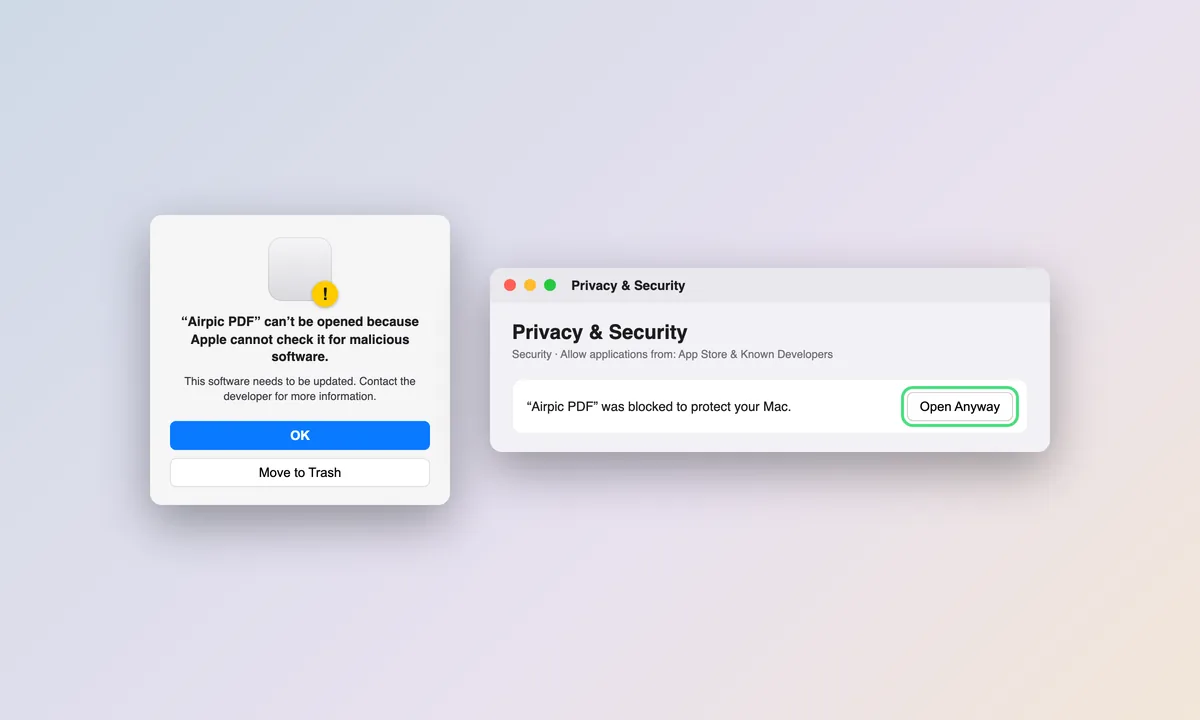
- Open the .dmg file and drag Airpic PDF to the Applications folder.
- The first time, macOS will say it cannot verify the developer: go to System Settings → Privacy & Security, scroll to the notice and click “Open Anyway”.
- From then on it opens with a double click, and via “Open With” on any PDF.
- Do not turn off SmartScreen or Gatekeeper: the exception for this one file is enough.
Windows
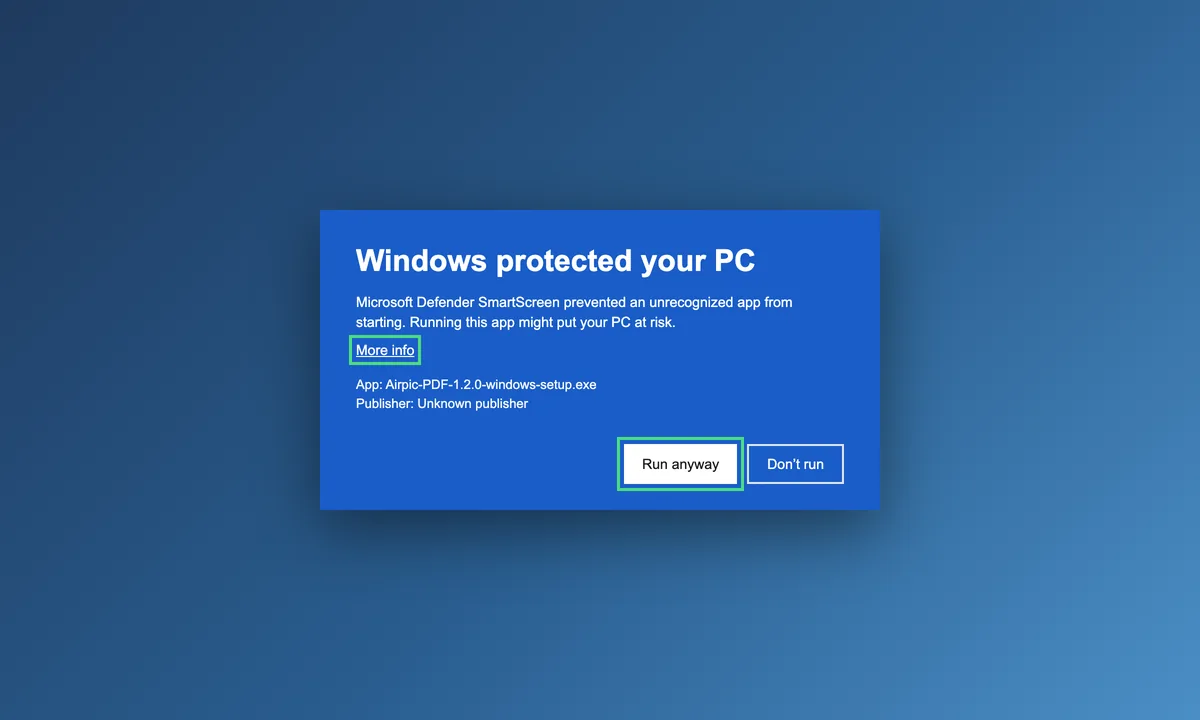
- Run the installer. No administrator rights needed.
- If SmartScreen shows “Windows protected your PC”, click “More info” and then “Run anyway”.
- If Microsoft Edge WebView2 is missing (it ships with Windows 11), the installer downloads it.
- Some company policies block unsigned installers; in that case you will need your administrator.
- Do not turn off SmartScreen or Gatekeeper: the exception for this one file is enough.
Airpic PDF sends nothing to the internet. Only if you choose “link for another network” when signing from your phone is a temporary tunnel created for the signature page; the document never travels.